Bee Shrimp Aquarium Desktop & Streaming Backdrop
Turn the observation aquarium into a second-monitor companion or chill stream background without fighting the camera.
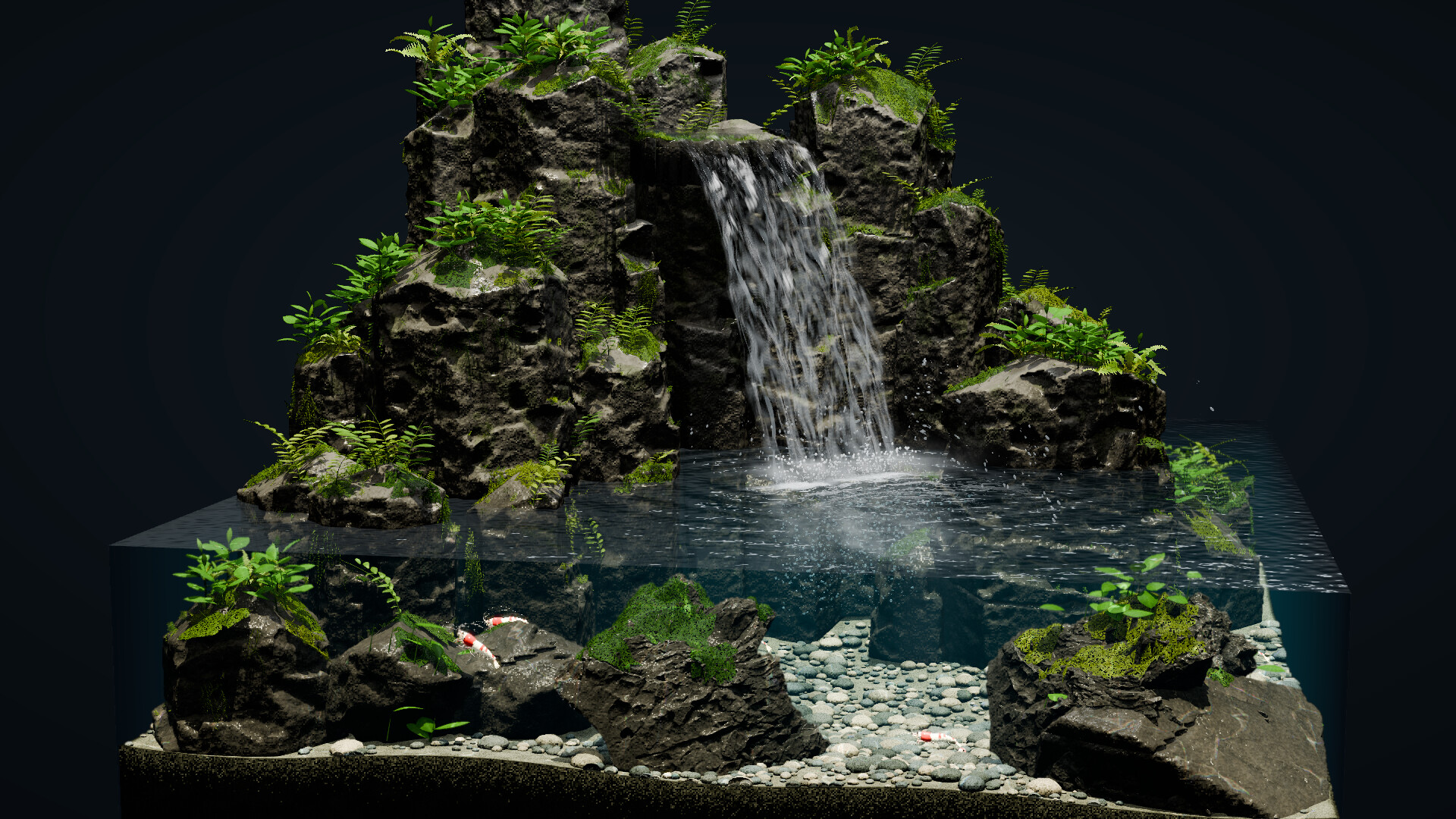
Bee Shrimp Aquarium is unusually good as a desktop ambience tool and a stream backdrop. The game already includes auto camera rotation, favorites cycling across aquascapes and lighting, adjustable water sound, and pause — the exact levers you need for a living wallpaper that still looks intentional on camera. This guide shows how to build a hands-off loop for studying, working, or chill streaming without turning the tank into a distraction machine.
Store policy allows streaming and video posting without prior permission, including monetized platform features. Pair that freedom with sensible framing and audio so viewers see shrimp instead of UI clutter. Camera fundamentals live in Controls & Camera. Comfort presets expand in Best Settings. Scenic shortlists sit on Aquascape Rankings. Honest fit notes remain on the Review Hub.
What “backdrop mode” means here
Backdrop mode is not a hidden difficulty. It is a play style:
- Pick a shortlist of aquascapes you actually enjoy.
- Attach lighting moods that match the time of day.
- Enable auto camera with a gentle interval.
- Optionally cycle favorites so the desk does not freeze on one angle forever.
- Keep water volume under your music, mic, or call audio.
- Pause only when you need a still frame for screenshots or overlays.
You are not managing colonies. There is still no breeding, no water chemistry, and no free placement. That is why the loop stays stream-safe for hours: the systems cannot spiral into chores.
Auto camera: the core idle tool
Automatic camera rotation is the difference between a screensaver and a fidget toy. Use it when you want motion without touching the mouse.
Desktop work companion
- Prefer longer intervals so cuts feel rare.
- Favor wide or medium framing so silhouettes (bonsai, waterfall sheet, moss mounds) read at a glance.
- Avoid stacking only close-ups; microscopic claw detail is lovely when you lean in, but tiring as a permanent second-monitor crop.
Active watching or showcase streams
- Medium intervals keep energy up without seizure pacing.
- Mix one close-up slot into the favorites so viewers occasionally see grazing and grooming.
- Disable auto rotation briefly when you narrate a specific shrimp, then re-enable afterward.
Practice the inputs on Controls & Camera while the game is running. If switches feel dizzy, lengthen the interval before you blame the GPU.
Favorites cycle: aquascape, lighting, viewpoint
Favorites cycling can shuffle aquascapes, lighting settings, and viewpoints (wide / medium / close-up) on a timer. Treat it like a playlist, not a random chaos button.
A calm three-item desktop playlist might look like:
- Moss and driftwood + moonlight + medium
- Bonsai + sunset + wide
- Waterfall + moonlight + wide
A stream “guest showcase” playlist might swap in marimo under bright light for a cute cluster moment, then return to wide waterfall so chat can read the cascade behind your facecam.
Keep the list short. Two or three strong favorites beat cycling all twelve tanks with no taste filter. Tour options first via Aquascapes, then lock opinions on Aquascape Rankings and Lighting Rankings.
Lighting for desks and streams
You have three modes: bright, sunset, and moonlight.
- Bright — clearest patterns and moss texture; good for daytime desks and catalog screenshots.
- Sunset — warm social look; excellent behind evening chats and wood-forward aquascapes.
- Moonlight — lowest visual stress for late work or overnight idle; raise pattern contrast if shrimp disappear.
Match the room. A moonlight tank in a sunny office can look muddy on camera; a bright tank at midnight can glare. More mood pairing ideas live in Best Settings.
Sound volume that respects your mic
Water ambience sells the aquarium, but it fights podcasts, Discord calls, and stream mics.
- Deep work with music: water very low, almost textural.
- Solo relaxation: medium water, no competing playlist.
- Streaming with talk track: audible but never masking speech; compress lightly in OBS/Streamlabs if needed.
- Shared office: mute or near-mute; rely on visuals.
Dial volume in-game before you open a dozen overlays. Customization and ambience controls are summarized in Customization.
Pause, feed, and ripple — use sparingly on stream
Pause is perfect for screenshot hunts and thumbnail stills. On a live backdrop, constant pause/unpause reads as technical difficulty, so save it for planned beats.
Feed and ripple are delightful toys — shrimp gather, water reacts — but spam turns a chill stream into a clicker. For backdrop mode:
- Feed once when you want a short “look at the colony” segment.
- Ripple once to show responsiveness, then let auto camera resume.
- Return to idle rather than performing interactions every thirty seconds.
Interaction literacy: Feeding & Interaction.
Performance tips for all-day idle
Because you may leave the tank running for hours, stability beats peak spectacle.
- Start with a medium shrimp count; raise only if motion still feels sparse.
- Lengthen auto intervals before lowering resolution.
- Prefer wide waterfall or bonsai scenes if close-up orbit hitching appears.
- Close unused capture software when you are not recording.
- On laptops, watch thermals and power plans during overnight idle.
- Verify the floor specs on System Requirements if hitching persists near minimum hardware.
Remember launch scope: twelve aquascapes at release with more planned later. Backdrop setups should not depend on unreleased tanks. When new scenes ship, add them to favorites deliberately instead of auto-adding everything.
Stream layout suggestions
- Place facecam opposite the aquascape’s hero silhouette so you do not cover the waterfall sheet or bonsai canopy.
- Leave chat readable; avoid neon overlays that crush moonlight contrast.
- Mention once per stream that the game is a purchase/demo on Steam and that streaming is allowed — then let the tank do the talking.
- For VOD titles, “study with shrimp” or “cozy aquarium backdrop” sets clearer expectations than action-game language.
Purchase and demo links for viewers: Steam & Demo Hub. Launch context: Out Now & Launch Sale and Launch Notes.
Gameplay trailer mid-guide
The gameplay trailer below shows the observation motion you want on a desk or stream: shrimp activity, aquascape variety, and lighting changes. Watch it once while you finalize favorites, then return to this page for the setup checklist. (The official trailer remains on Getting Started — this page uses the separate gameplay trailer only.)
Ten-minute backdrop setup
- Install the full game or confirm the demo already feels smooth.
- Pick three aquascapes from Aquascapes.
- Assign bright / sunset / moonlight to match your usual hours.
- Set medium shrimp density and a high-contrast pattern.
- Lower water sound under your default audio.
- Enable auto camera with a long interval.
- Enable favorites cycling only after the shortlist feels intentional.
- Sit through five minutes without touching anything.
- Adjust one variable — density, interval, or light — if anything annoys you.
- Bookmark Best Settings and this guide for the next PC or stream layout change.
Related reading
A great backdrop disappears until someone asks what game is on your second monitor — then you have a calm answer ready.
Frequently Asked Questions
Quick answers to the most common questions.
Can I stream Bee Shrimp Aquarium without asking the developer?
Yes. Store policy allows individuals and companies to stream, post videos, and share screenshots without prior permission, including monetized streams.
What settings matter most for a desktop backdrop?
Auto camera with a longer interval, a short favorites list, lighting matched to the room, and water sound kept under your music or calls.
Should I cycle all twelve aquascapes?
Usually no. Two or three strong favorites look more intentional than shuffling every tank without a taste filter.
Which lighting works best at night on stream?
Moonlight is the usual comfort pick. Raise pattern contrast if shrimp become hard to see on camera.
Where do I learn camera controls for backdrop mode?
See Controls & Camera for inputs, then Best Settings for interval and comfort presets. This page focuses on desktop and stream workflows.